YouTube Quickstart: Set Up Your Chatbot
Part 5 of 5 · All steps
Add StreamElements as a moderator, then create a command, schedule a timer, and choose your spam filters.
Add the bot as a moderator
Section titled “Add the bot as a moderator”- Open YouTube Studio and go to Settings → Community.
- Add StreamElements as a moderator using either channel URL:
https://youtube.com/c/streamelementshttps://www.youtube.com/channel/UCjerlCIbLPQwSnYlClkjDXg
- When you’re live, select Live chat. Top chat can hide the bot’s messages.
If the bot doesn’t join, check that your stream is public, the StreamElements dashboard shows you as live, and the moderator URL matches one of the URLs above.
Create your first command
Section titled “Create your first command”This example creates a !hello command that replies with the viewer’s name.
-
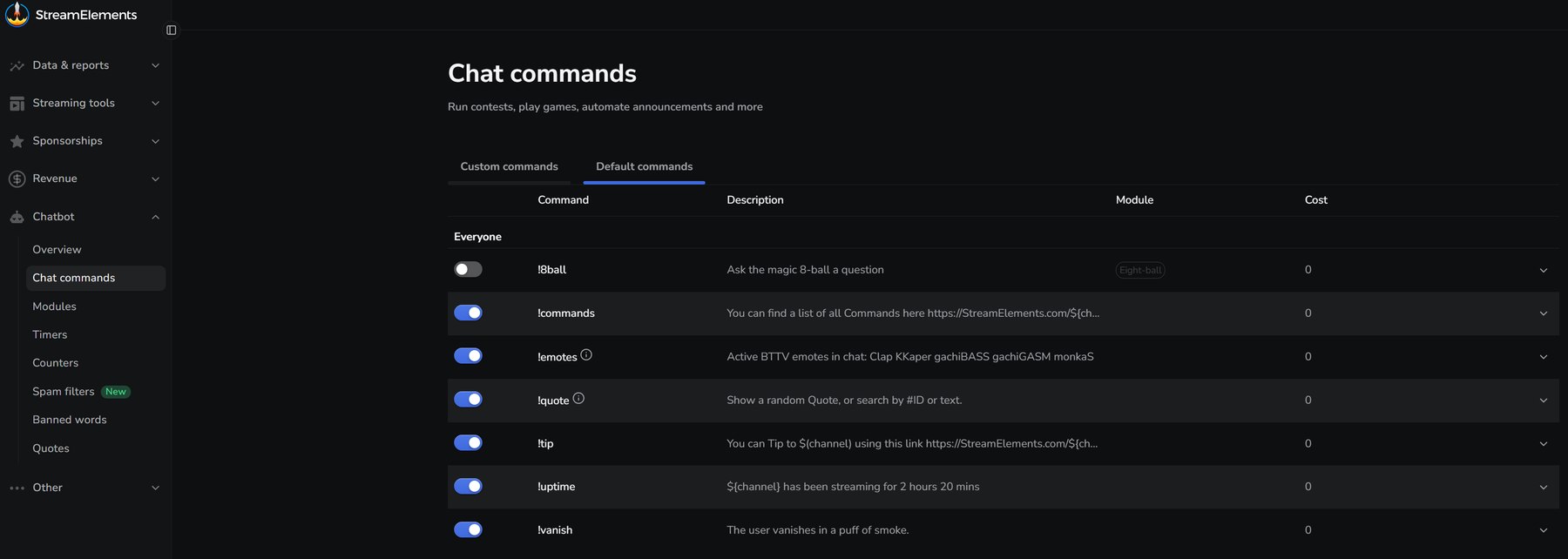
From the bot command dashboard, open the Custom commands tab and click Add new command.
-
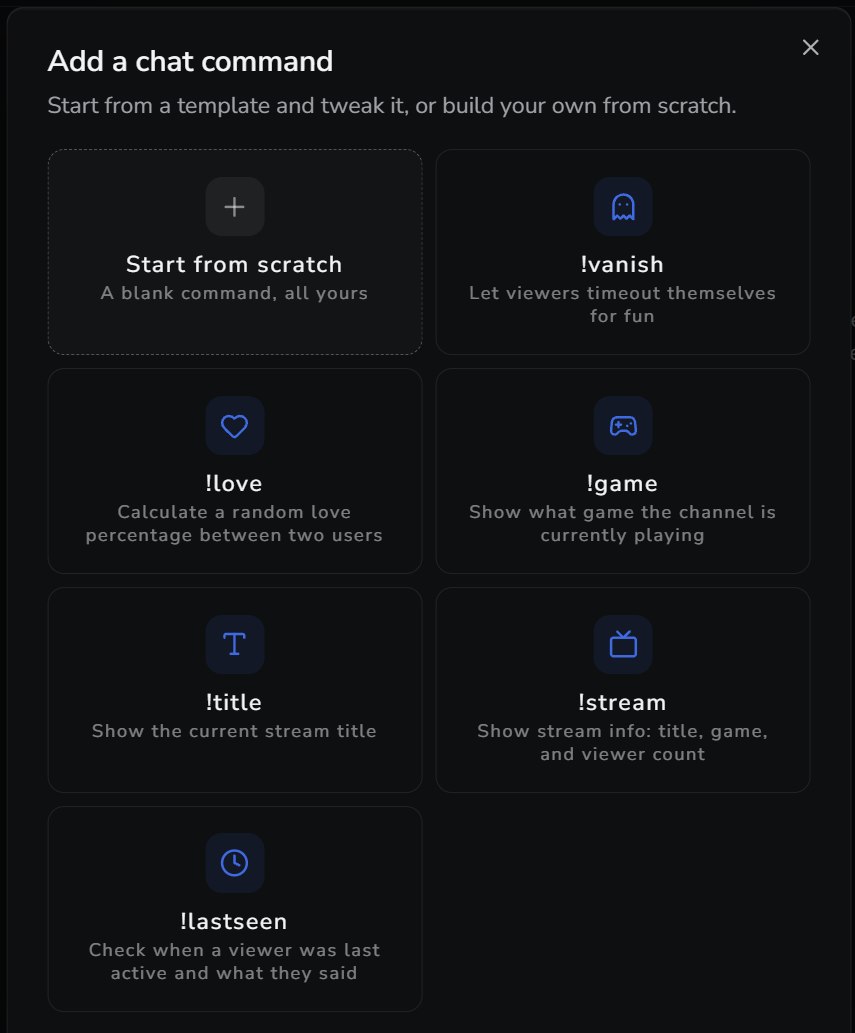
Choose Start from scratch and enter
helloin Command name. Viewers will type!helloto use it. -
In Reply, enter:
Hello $(sender)! -
Click Activate command, then type
!helloin your live chat to check the reply.
The $(sender) variable inserts the name of the person who used the command. Use it for names on YouTube; $(user) doesn’t work there.
Set up your first timer
Section titled “Set up your first timer”Timers post messages at set intervals while you’re live. Use them for social links or schedule reminders.
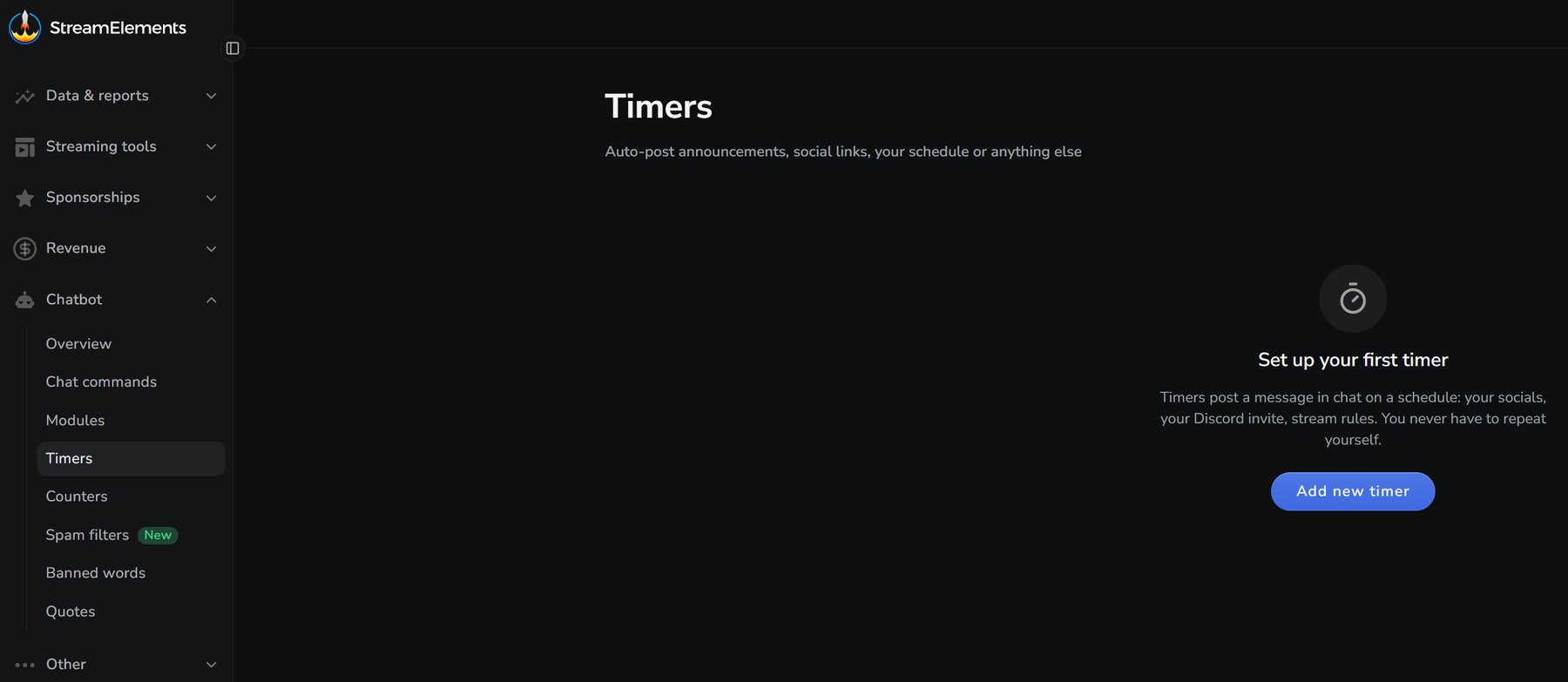
- From the bot timers dashboard, click Add new timer.
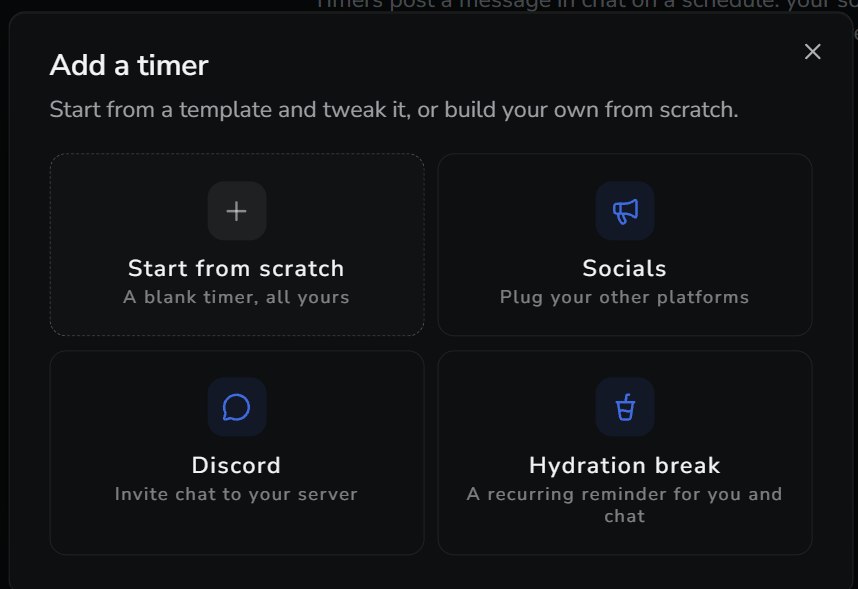
- Name it, add a message, and set the Online interval in minutes.
- Click Activate Timer.
Turn on spam filters
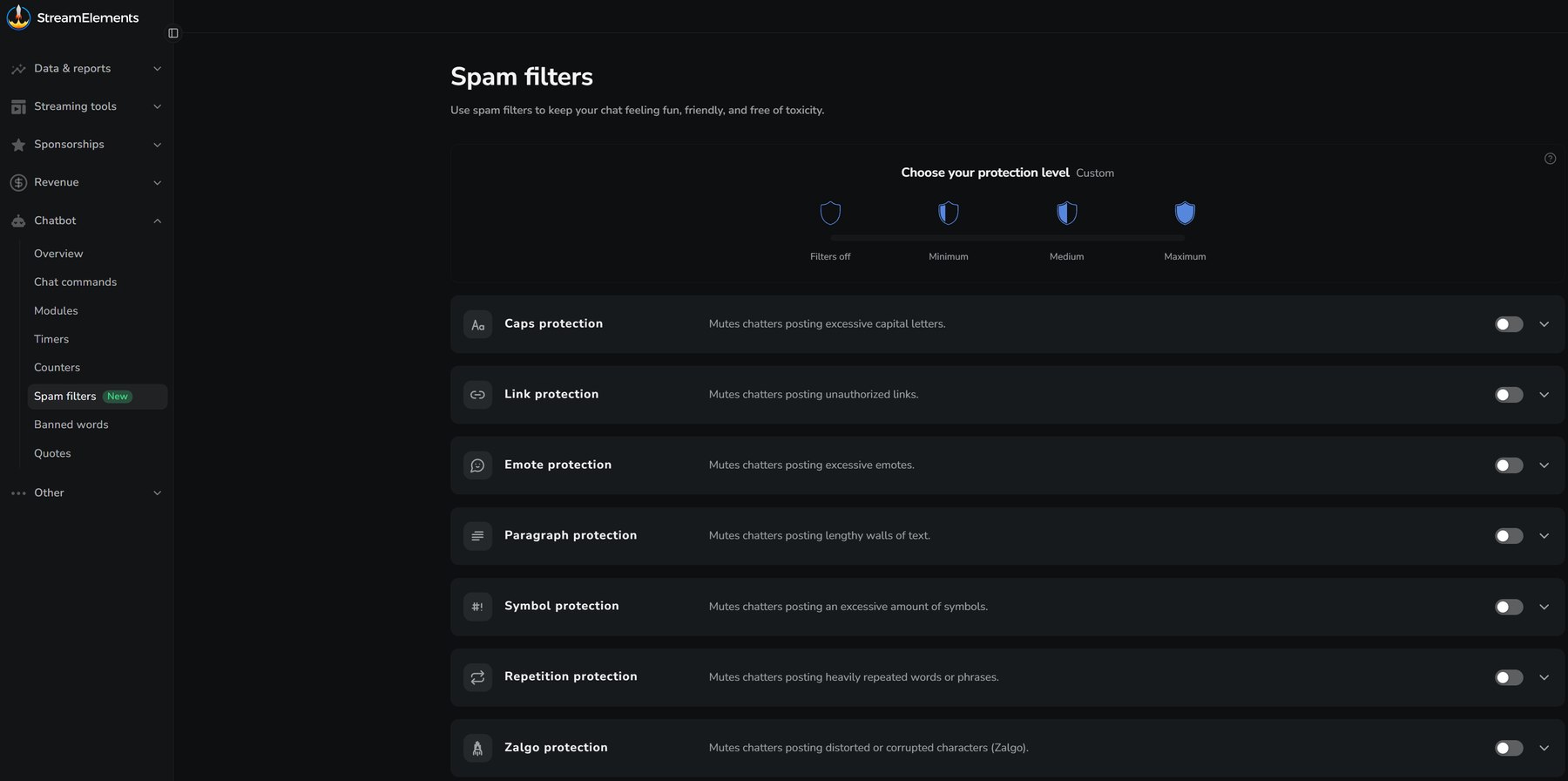
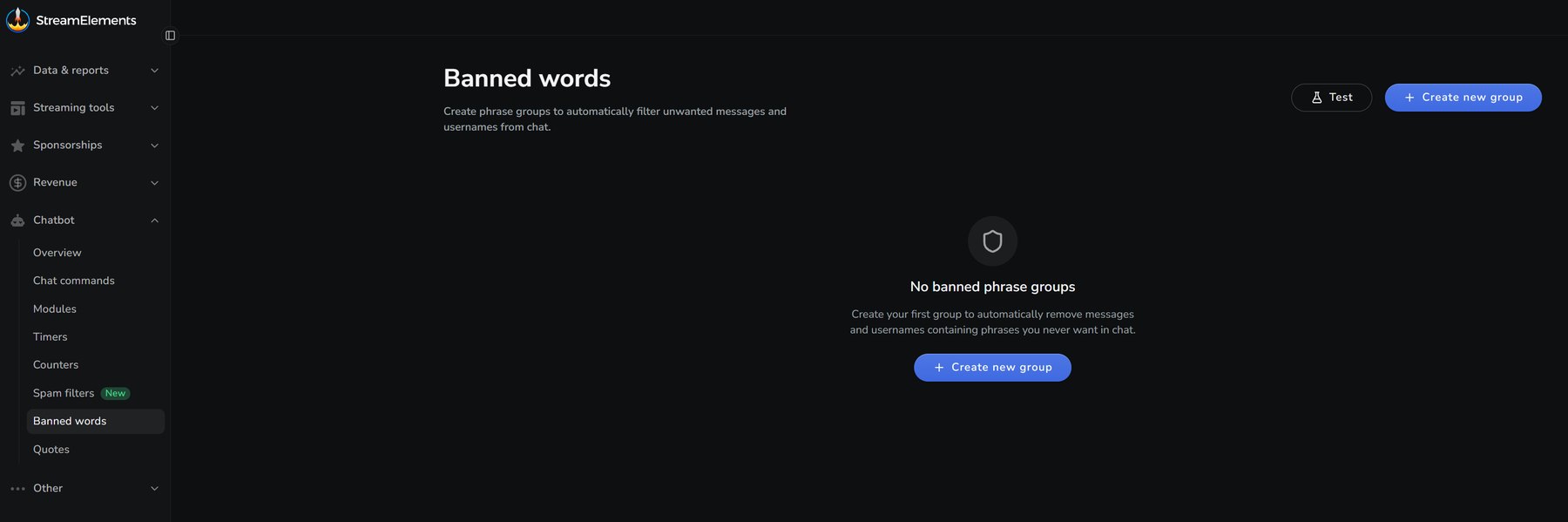
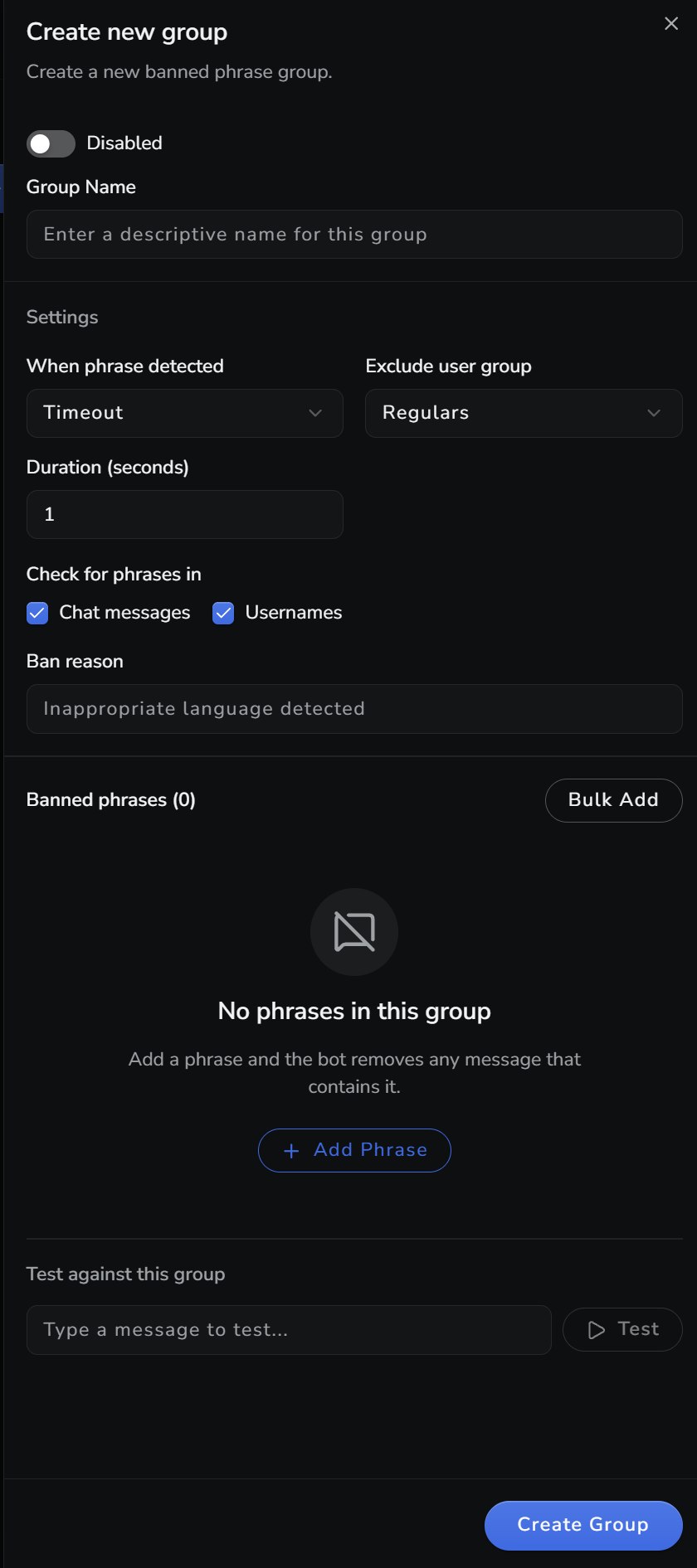
Section titled “Turn on spam filters”Open Chatbot → Spam filters and choose Minimum, Medium, or Maximum protection. Expand a filter to change its settings. Use Banned Words to block specific words or phrases.