

YouTube dual stream (Beta)
With YouTube’s dual stream, one broadcast can carry both a horizontal and a vertical version of your stream. YouTube shows each viewer the version that matches the format they’re watching in, so you reach desktop and mobile viewers without running two separate streams.
In SE.Live, you send each format from its own output and connect both to the same scheduled stream in YouTube Studio.
Before you begin
Section titled “Before you begin”- Install SE.Live and connect your YouTube channel.
- Enable live streaming on your YouTube channel.
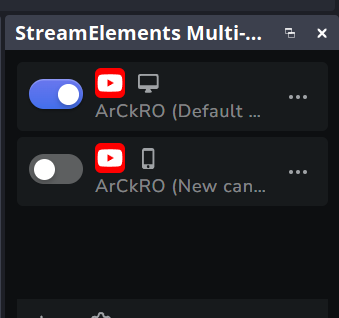
- Create a vertical canvas for your vertical layout. YouTube channels get a horizontal and a vertical output in the Multistream dock. See Set up multistreaming.
Set up the stream in YouTube Studio
Section titled “Set up the stream in YouTube Studio”1. Create a scheduled stream
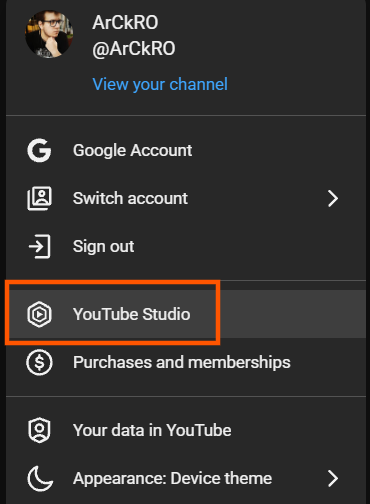
Section titled “1. Create a scheduled stream”Open YouTube Studio from your profile menu.
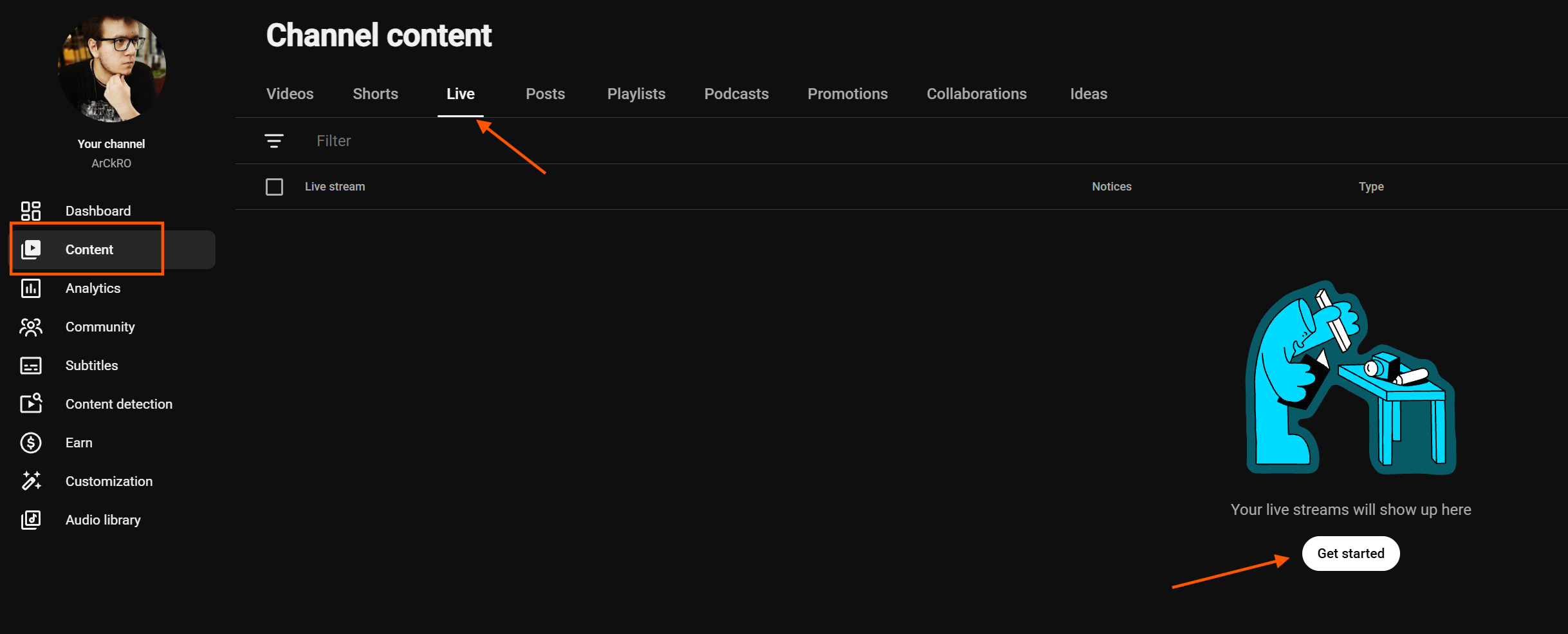
In the left menu, select Content, open the Live tab, and click Get started to schedule a stream.
2. Open the stream settings
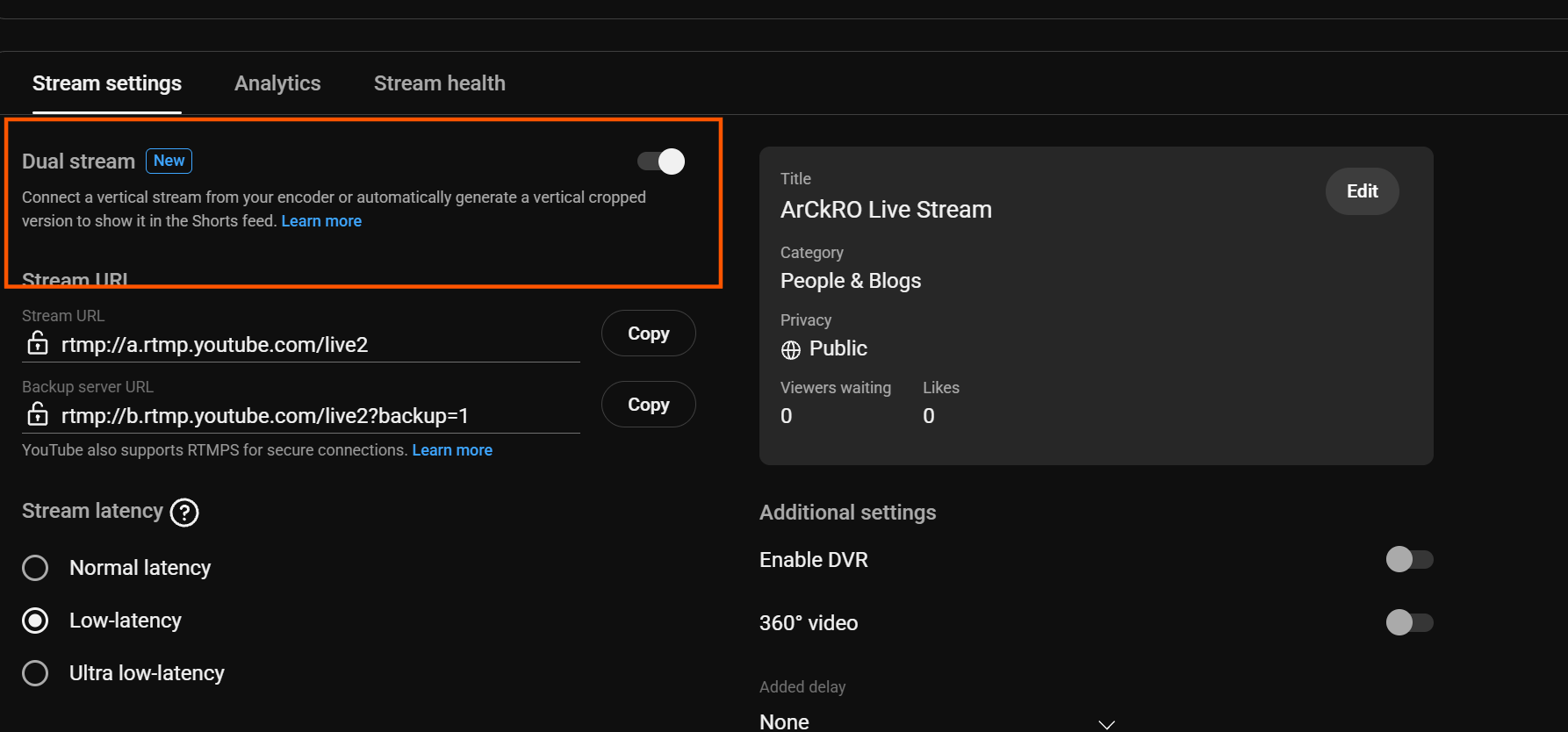
Section titled “2. Open the stream settings”Open your scheduled stream and select the Stream settings tab. Make sure Dual stream is turned on. It lets you connect a vertical stream from your encoder, or have YouTube generate a vertical cropped version for the Shorts feed.
3. Set the vertical stream to use an encoder
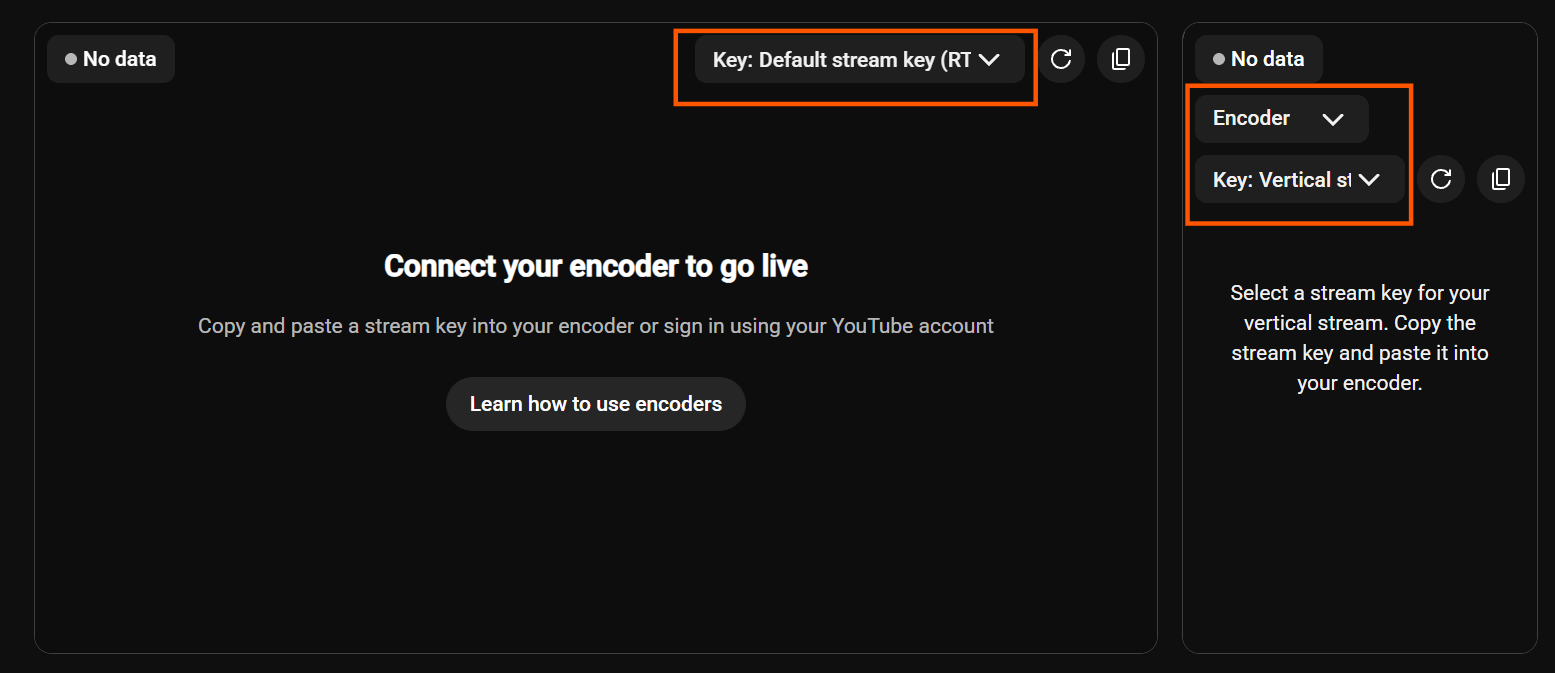
Section titled “3. Set the vertical stream to use an encoder”In the vertical stream panel, change the source to Encoder and select your vertical stream key. The horizontal stream keeps using the default stream key.
Go live from SE.Live
Section titled “Go live from SE.Live”4. Enable the main output
Section titled “4. Enable the main output”In the Multistream dock in SE.Live, turn on your main YouTube output, the horizontal one with the desktop icon.
5. Start the stream in SE.Live
Section titled “5. Start the stream in SE.Live”Start your stream in SE.Live. When prompted, choose the scheduled stream you created in step 1.
6. Enable the second output
Section titled “6. Enable the second output”In the Multistream dock, turn on the vertical output, the one with the phone icon.
7. Choose the same scheduled stream
Section titled “7. Choose the same scheduled stream”When SE.Live prompts you to start the vertical output, choose the same scheduled stream you picked in step 5. Both outputs must use the same scheduled stream.
8. Go live in YouTube Studio
Section titled “8. Go live in YouTube Studio”Once both outputs are connected, click Go Live in YouTube Studio. Each preview in YouTube Studio shows No data until its output connects.
End the stream
Section titled “End the stream”9. End the stream in YouTube Studio
Section titled “9. End the stream in YouTube Studio”End your broadcast in YouTube Studio first.
10. End the stream in SE.Live
Section titled “10. End the stream in SE.Live”Then end the stream in SE.Live.
Get help
Section titled “Get help”Get help with dual stream setup.