

Create a vertical canvas
A canvas holds a stream layout. Create a separate canvas to arrange your camera, gameplay, and alerts for vertical viewing.
Before you begin, install and connect SE.Live.
Create the canvas
Section titled “Create the canvas”- In the Multistreaming panel, open an output’s three-dot menu.
- Select Canvas → Create New Canvas.
- Name the canvas and choose 1080 × 1920 for a vertical layout.
- Confirm to create the canvas.
The canvas opens in its own dock, with a preview above its scenes and sources. If you close it, reopen it through StreamElements → SE.Live Docks.
Check the resolution
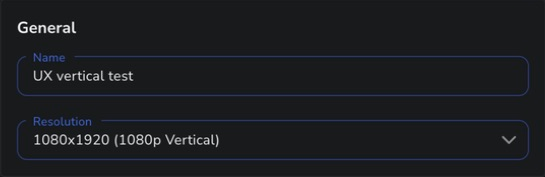
Section titled “Check the resolution”Open the canvas settings with the gear icon. Under General, check that Resolution is 1080×1920 (1080p Vertical). Save any changes.
Arrange the layout
Section titled “Arrange the layout”Add scenes and sources to the canvas. Resize and reposition them in the preview so your camera, gameplay, and alerts fit the portrait frame.
Link each canvas scene to its matching OBS scene to keep scene changes in sync.
Choose where to stream
Section titled “Choose where to stream”For multistreaming, select the canvas from the output’s Canvas menu. Check the output’s canvas name before going live.
For Twitch dual format, select it as Additional Canvas in OBS’s stream settings.