

Set up multistreaming
Each output sends your stream to a platform. SE.Live sends these streams from your computer, so your upload connection must handle their combined bitrate. Three outputs at 6,000 Kbps need 18,000 Kbps, plus room for overhead.
Connect your outputs
Section titled “Connect your outputs”- Open StreamElements → SE.Live Docks → StreamElements Multi-Streaming.
- Open Settings from the panel’s gear button or an output’s three-dot menu.
- Under Outputs, connect the accounts you want to stream to. Use Add output to add another destination.
- Expand Output settings and choose the OBS audio track to send to that output. Save your changes.
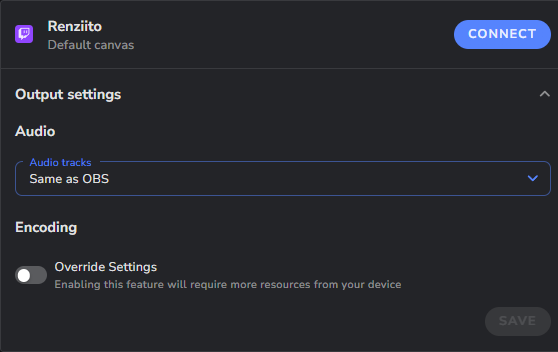
Prepare each broadcast
Section titled “Prepare each broadcast”- Enable the outputs you want in the Multistreaming panel.
- Check each channel name and assigned canvas. Use a custom canvas for a separate layout.
- Under Broadcast Settings, set each stream’s title, category, and platform options, such as YouTube privacy.
TikTok requires LIVE access before you can stream to it.
Go live
Section titled “Go live”- Click Start Streaming.
- Review the details for each enabled platform, then click Start Streaming again.
- Check for Live beside every output you enabled.
To stop one output while the others keep streaming, turn off its toggle in the Multistreaming panel.
For horizontal and vertical streams on Twitch, use Twitch dual format. On YouTube, use YouTube dual stream.