

Add overlays and alerts
Create your overlay
Section titled “Create your overlay”- Open My Overlays and choose New overlay.
- Choose a resolution that matches your scene.
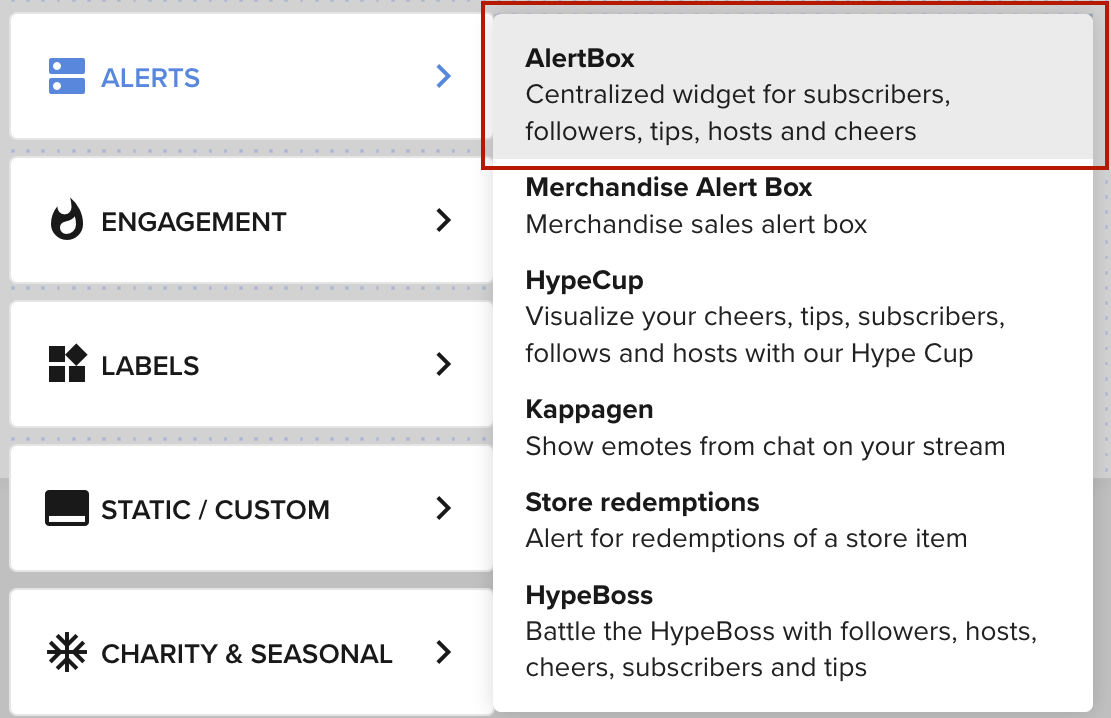
- In the editor, select + → Alerts → AlertBox to add alerts. Configure the alert types you need, then save.
Add it to OBS
Section titled “Add it to OBS”- In My Overlays, open the overlay’s three-dot menu and select Copy URL. You can also use the link icon in the overlay editor.
- In OBS, select your scene, then choose Sources → + → Browser.
- Create and name the source, then paste the overlay URL into its properties.
- Set Width and Height to match the overlay. A 1920 × 1080 overlay needs those same source dimensions; use your overlay’s dimensions for a vertical layout.
- Save, then place the browser source above sources that would cover it.
Keep the overlay URL private.
Customize alerts
Section titled “Customize alerts”In the overlay editor, select the AlertBox and open the gear beside an event type to change its image, sound, text, layout, and duration. Save your changes.
Check enabled variations too: changing a default alert does not change every variation. Customize or disable variations you do not want. See Setting Up Twitch Alerts for examples.
Use alerts across scenes
Section titled “Use alerts across scenes”You can keep the AlertBox in its own overlay and copy its browser source into each scene. Hide or remove duplicate AlertBoxes in your other overlays to avoid playing the same alert twice.
If an alert is missing, check overlay troubleshooting. For volume and monitoring, follow alert audio troubleshooting.
Customize further
Section titled “Customize further”For an overlay with your own HTML, CSS, and JavaScript, follow Build your first custom widget.