

Manage scenes and sources
A scene groups sources such as your camera, gameplay, images, and overlays. Start with a custom canvas.
Add a scene
Section titled “Add a scene”- Click + at the bottom left of the canvas dock.
- Name the scene, then click Add Scene.
Add sources
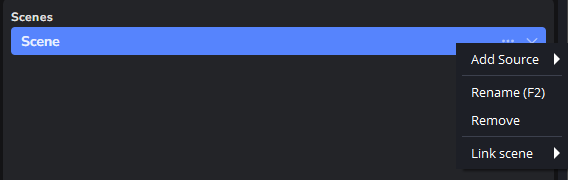
Section titled “Add sources”- Open the scene’s three-dot menu.
- Choose Add Source, then select a source type.
- Choose Add existing to reuse a source, or Create new to set up another one.
- Set Make source visible to choose whether it appears immediately, then click Add Source.
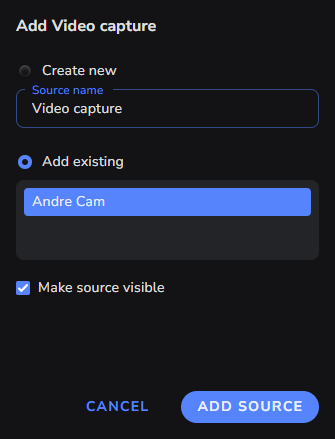
Reusing a source uses fewer resources than creating another instance. For browser overlays, follow Add overlays and alerts.
Check canvas settings
Section titled “Check canvas settings”Open the canvas settings with the gear icon. Choose the canvas you want to edit, then check its name, resolution, and assigned outputs. Save any changes.
Link scenes
Section titled “Link scenes”Link a canvas scene to its matching OBS scene. For example, link a vertical Just Chatting scene to your horizontal Just Chatting scene.
- Open the canvas scene’s three-dot menu.
- Select Link scene, then choose the OBS scene.
- Switch to the canvas scene and check that the linked OBS scene changes too.