

Stream in dual format on Twitch
Dual format sends horizontal and vertical versions of your stream to Twitch together. Desktop and TV viewers see your horizontal layout. Mobile viewers can watch vertically or rotate their phone for the horizontal view.
Before you begin
Section titled “Before you begin”- Use OBS Studio 32.0.0 or newer and install SE.Live Public Beta. Close OBS before running the SE.Live installer.
- Connect Twitch in Settings → Stream in OBS.
- Check Twitch’s hardware and upload requirements. Dual format is available to all Twitch streamers.
- If you have Aitum Vertical installed, uninstall it before using SE.Live dual format. Running both plugins can cause OBS to crash.
Prepare your vertical layout
Section titled “Prepare your vertical layout”- Create a vertical canvas at 1080 × 1920.
- Add scenes and sources, then arrange your camera, gameplay, and alerts to fit the portrait frame.
- Link your scenes and check both layouts in the preview.
Enable dual format
Section titled “Enable dual format”- Open Settings → Stream in OBS and select Twitch.
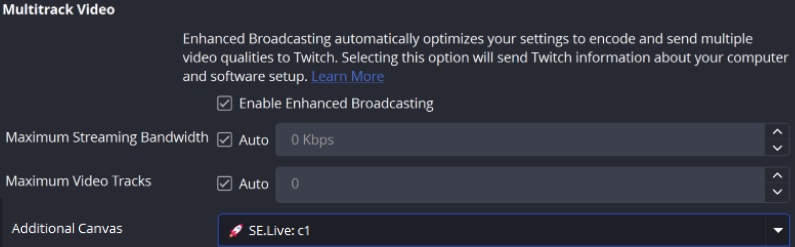
- Under Multitrack Video, check Enable Enhanced Broadcasting.
- Open Additional Canvas and select your SE.Live vertical canvas.
- Click Apply, then OK.
Go live and check the result
Section titled “Go live and check the result”Click Start Streaming in OBS. Open your stream on a phone and check it in portrait and landscape. Switch scenes and confirm that the camera, gameplay, and alerts stay in frame.
To return to horizontal-only streaming, set Additional Canvas to None.