

Save replays with Backtrack
Backtrack keeps a temporary recording of your stream. Press a hotkey to save a moment after it happens.
Use the latest SE.Live version and create a custom canvas before you begin.
Enable Backtrack
Section titled “Enable Backtrack”- Open your canvas settings with the gear icon.
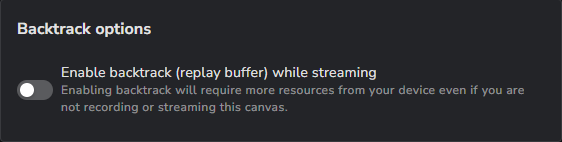
- Scroll to Backtrack options and turn on Enable backtrack (replay buffer) while streaming.
- Click Save changes.
Save a replay
Section titled “Save a replay”- Start streaming from the canvas.
- Open Settings → Hotkeys in OBS.
- Under Canvas Backtrack (Replay Buffer): [CANVAS NAME], assign a hotkey to Save Replay.
- Save your settings, then press the hotkey to save a replay. SE.Live remembers it for this canvas.
Canvas Backtrack saves replays only while the canvas is streaming. To save replays offline, use OBS’s replay buffer.
Limit resource use
Section titled “Limit resource use”Keep buffers at 180 seconds or less. Enabled buffers use encoding resources even while the canvas is idle, so turn off Backtrack on canvases you do not need.