

YouTube Quickstart: Connect OBS and Go Live
Part 4 of 5 · All steps
Connect OBS to YouTube and add your overlay as a browser source. If you’re already streaming with your overlay, continue to 5. Set Up Your Chatbot.
Install SE.Live
Section titled “Install SE.Live”SE.Live is a StreamElements plugin that adds chat, the Activity Feed, and stream controls to OBS.
Requirements: OBS Studio 31.x or newer. SE.Live is available for Windows, with a macOS beta.
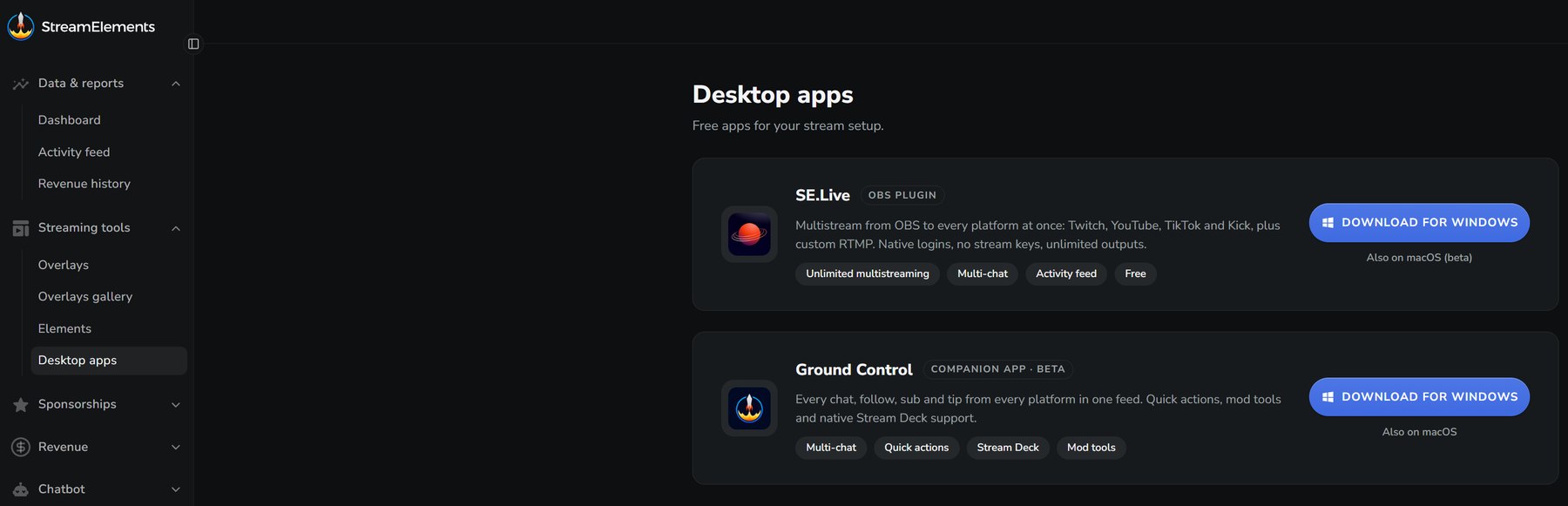
- Download the installer for your operating system from the SE.Live page. Choose the Mac beta for macOS.
- Close OBS, then run the installer and choose your install folder.
- Reopen OBS. On Windows, run it as Administrator. Look for the StreamElements menu in the menu bar.
Connect your channel to SE.Live
Section titled “Connect your channel to SE.Live”The first time SE.Live opens in OBS, it asks you to connect a channel.
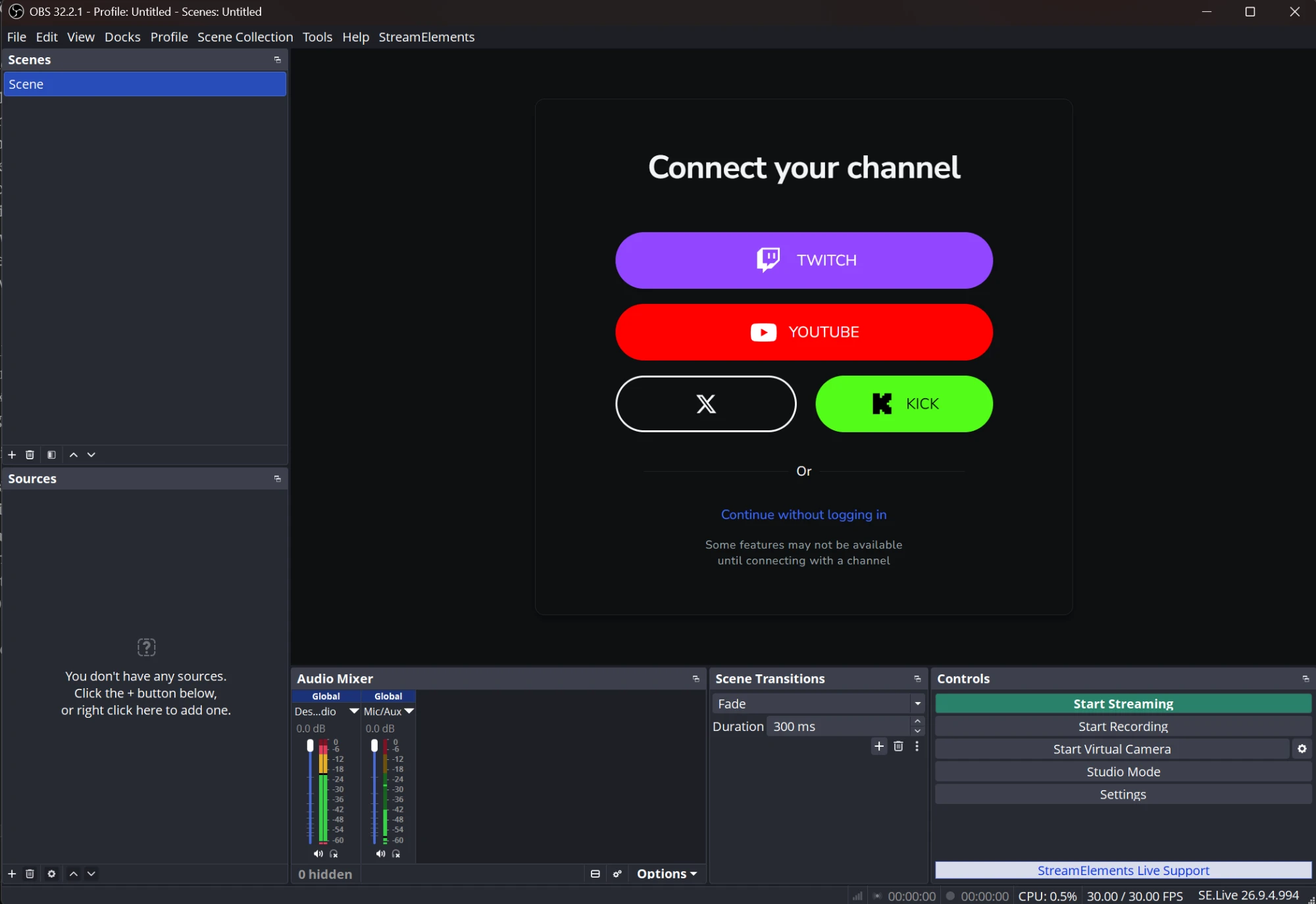
- Click YOUTUBE, sign in with Google, and select your channel.
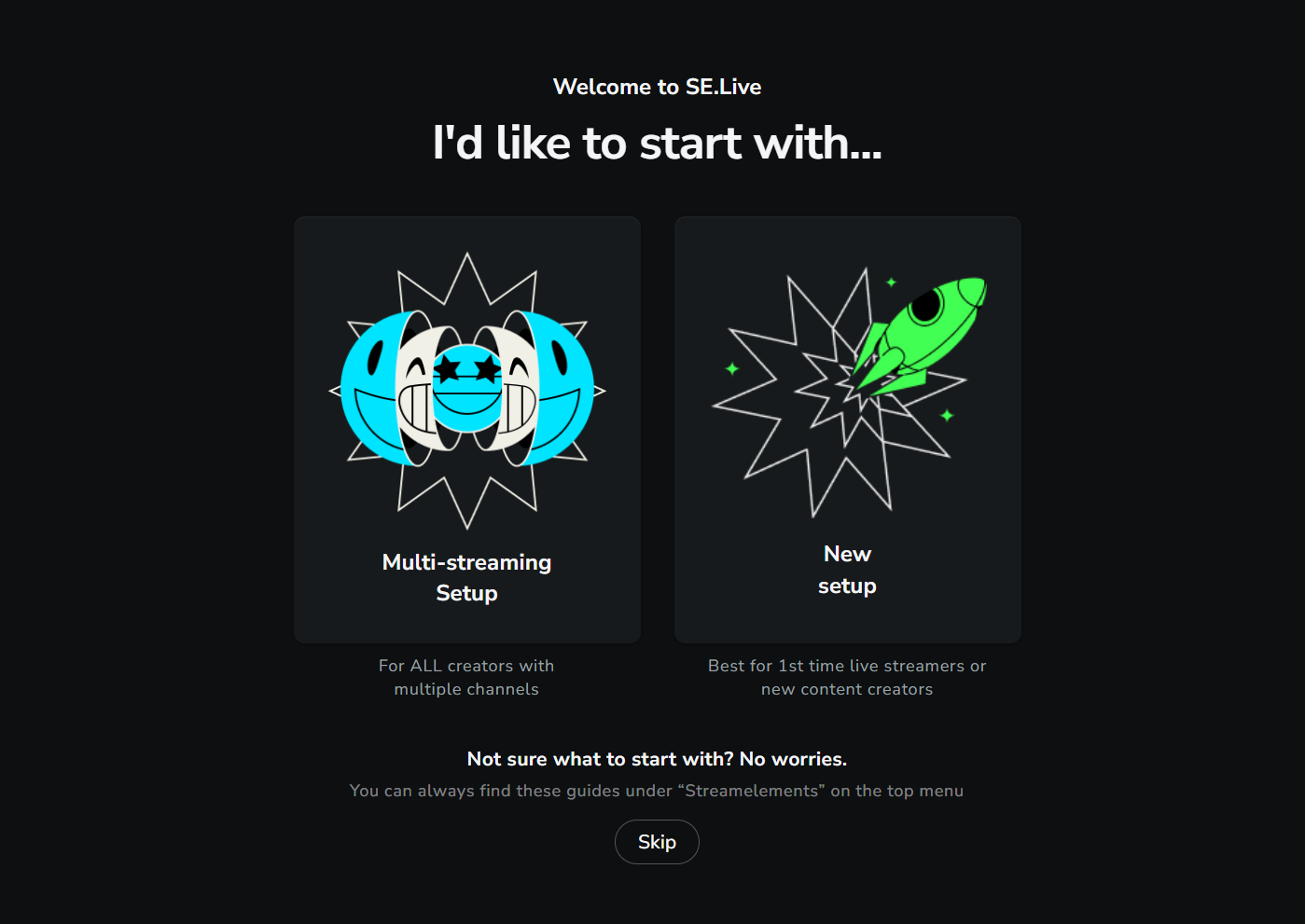
- On the I’d like to start with… screen, choose New setup. To stream to several platforms, choose Multi-streaming Setup and follow the multistreaming guide.
Run the setup wizard
Section titled “Run the setup wizard”The New setup wizard adds your microphone, camera, and display capture to OBS.
-
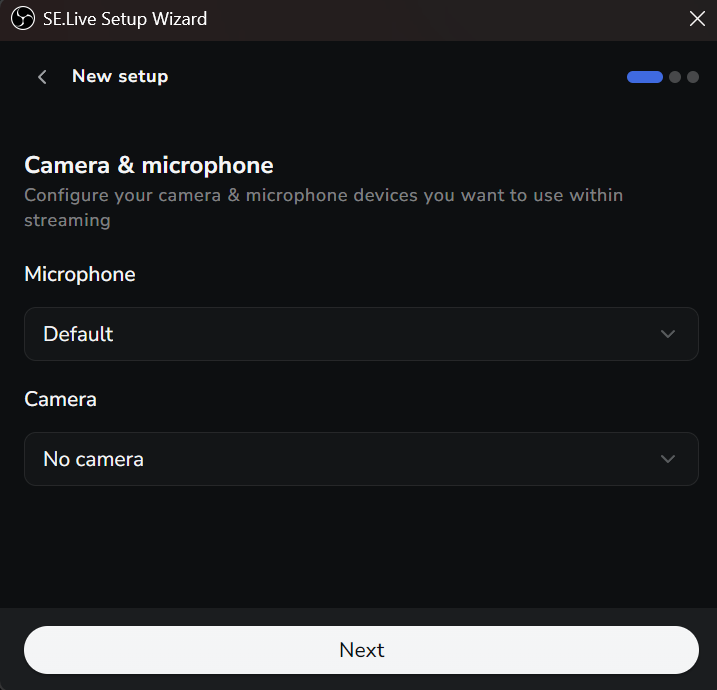
Camera & microphone. Select your devices, or choose No camera. Click Next.
-
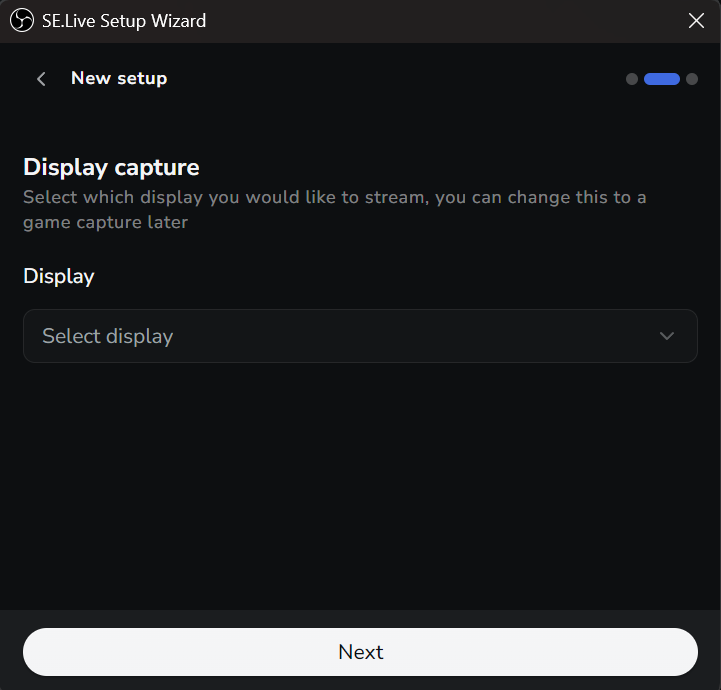
Display capture. Select the display you want to stream and click Next. You can switch to game capture later.
-
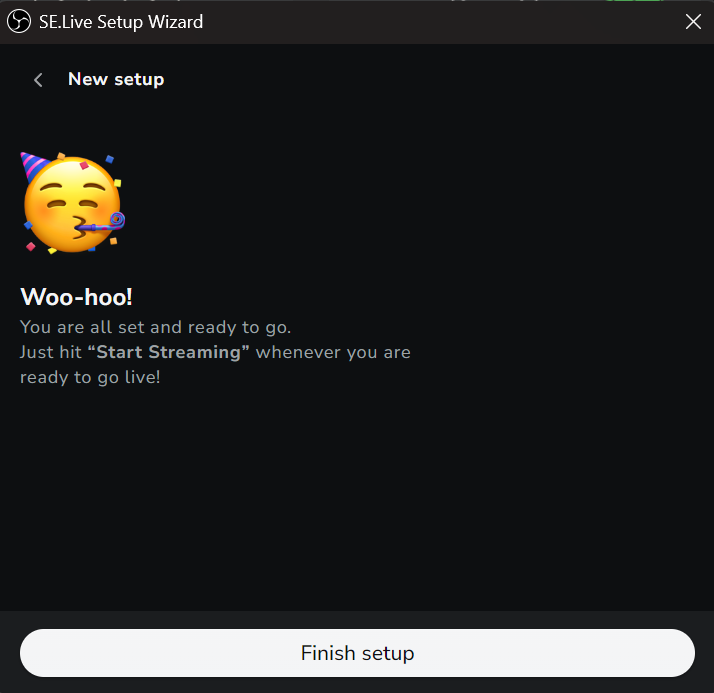
Click Finish setup.
Connect OBS to YouTube
Section titled “Connect OBS to YouTube”In OBS, open Settings → Stream, choose YouTube - RTMPS, and click Connect Account. Follow the Google sign-in prompts and select the channel you want to stream to. If OBS already shows the correct channel, keep that connection.
Use a stream key instead
Section titled “Use a stream key instead”If you connected your YouTube account in OBS, skip this step. To connect with a stream key instead:
- In YouTube Studio, select Create → Go Live and open the Stream tab. Create a stream if you don’t have one yet, then copy its stream key.
- In OBS, open Settings → Stream, choose YouTube - RTMPS, and select Use Stream Key. Paste the key and save your settings.
Add your overlay
Section titled “Add your overlay”- Open My Overlays in StreamElements. Find the overlay you created earlier, open its menu, and select Copy URL.
- In OBS Sources, click + → Browser, name the source, and paste the URL.
- Set Width and Height to match your overlay (
1920and1080if you used the default resolution). Check Shutdown when source not visible and click OK.
Open chat and stream controls
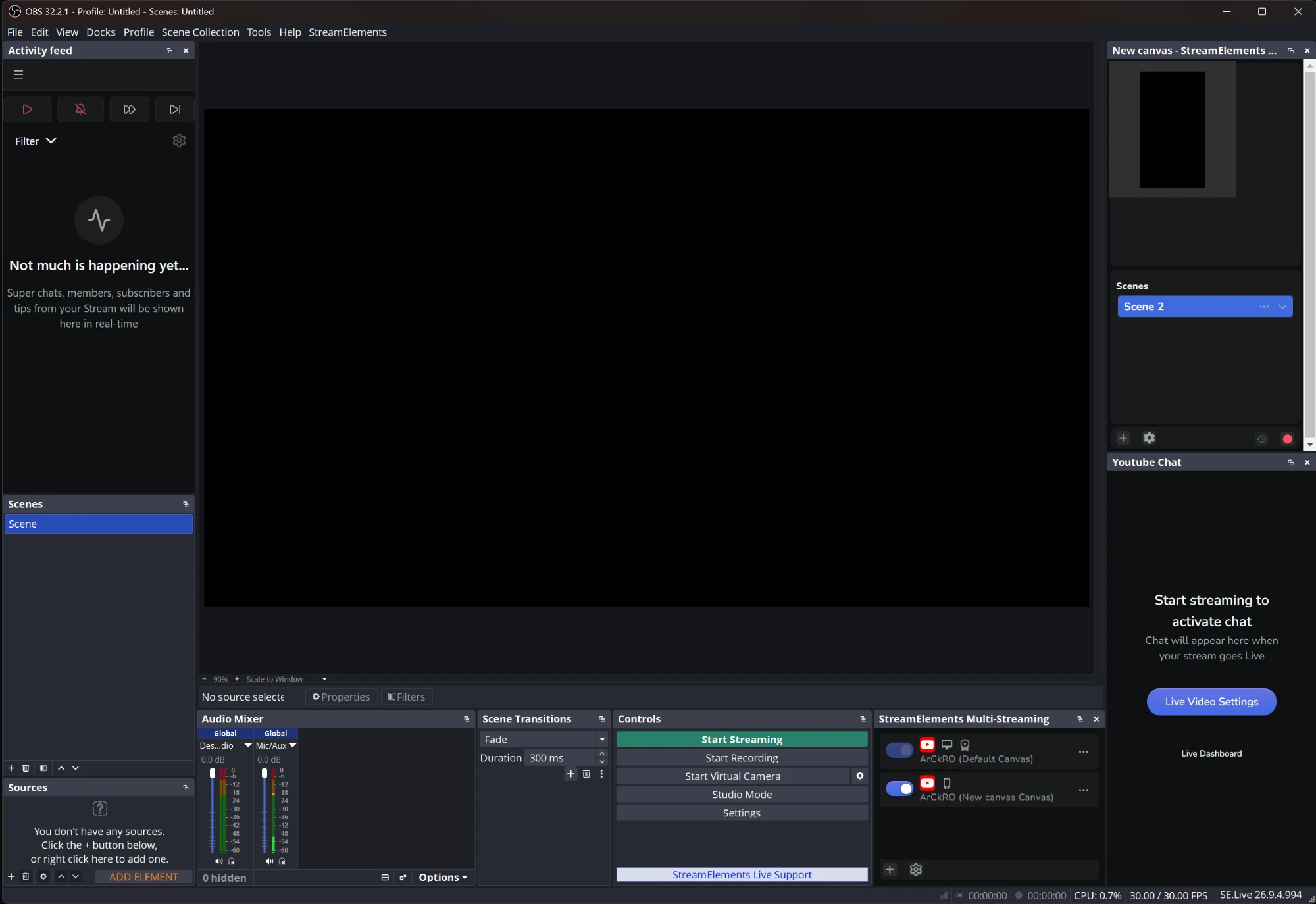
Section titled “Open chat and stream controls”Open StreamElements → SE.Live Docks and choose the panels you want to show.
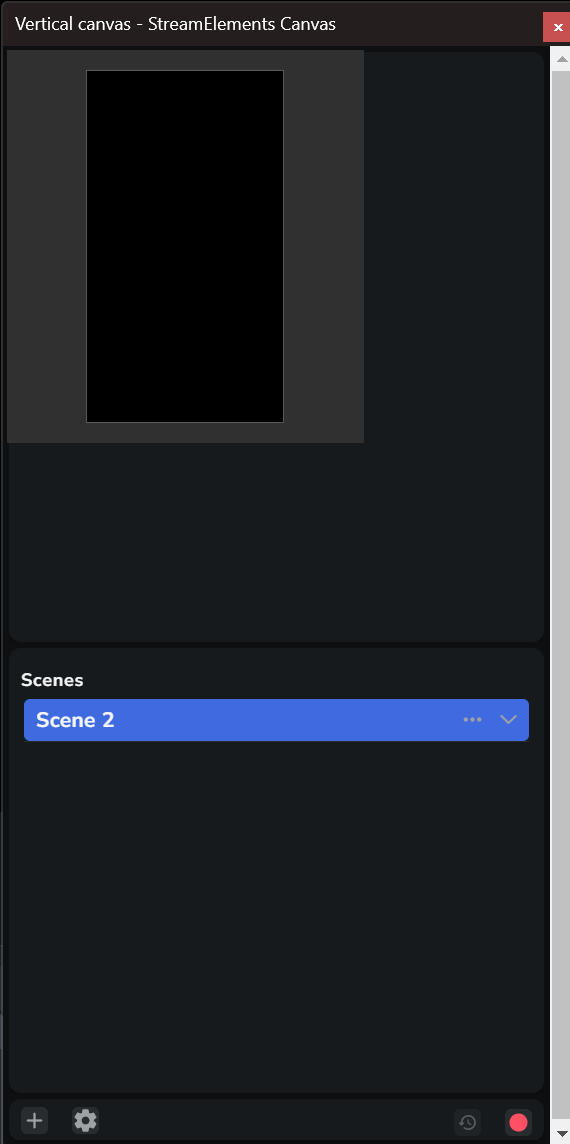
Canvas shows a preview and scene list for a canvas, including vertical layouts.
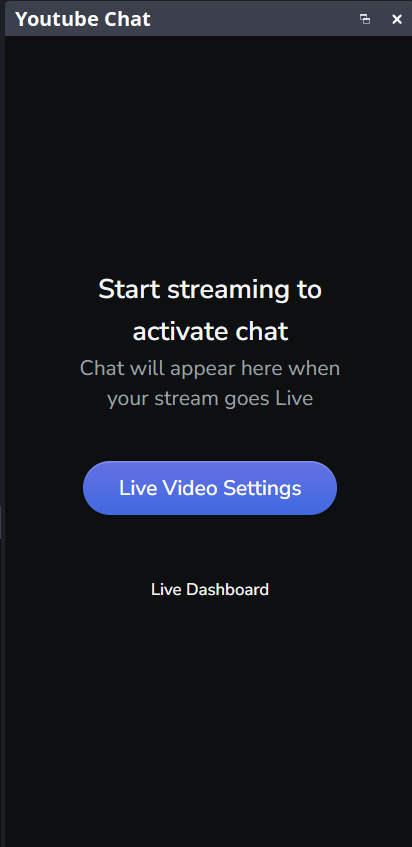
YouTube Chat shows chat messages while you’re live. It also links to Live Video Settings and the Live Dashboard.
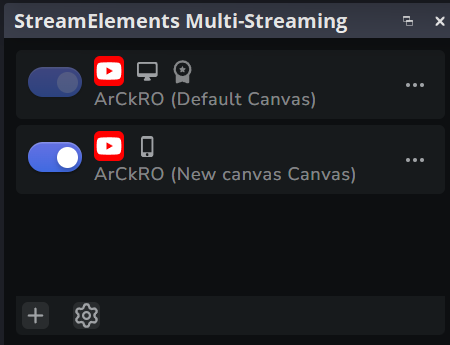
Multi-Streaming lists your connected destinations. Turn each destination on or off before you go live.
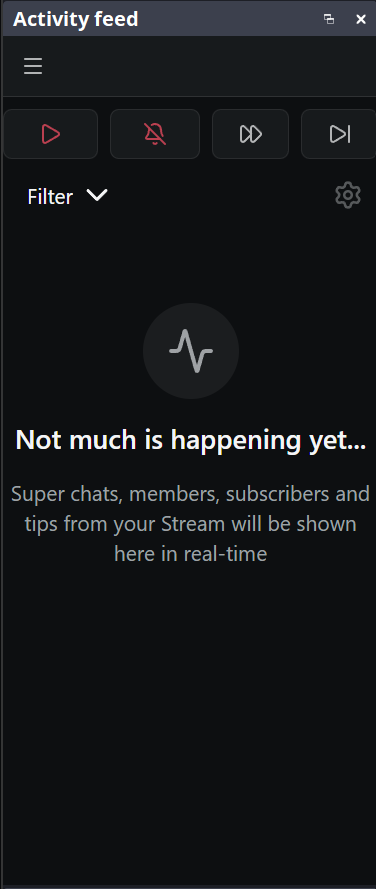
Activity Feed shows the same events and alert controls as the dashboard feed.
Drag the panels to arrange them around your OBS preview.
Go live
Section titled “Go live”- If you connected your YouTube account, use Manage Broadcast to create or select a broadcast. If you used a stream key, open that stream in YouTube Studio. Check the title, category, and privacy setting before starting.
- Click Start Streaming in OBS. Depending on your broadcast settings, you may also need to click Go Live in YouTube Studio. Check YouTube to confirm the stream is live.
See the OBS YouTube guide for account connection options and YouTube’s encoder guide for stream key setup.