

YouTube Quickstart: Take the Dashboard Tour
Part 2 of 5 · All steps
The dashboard shows your stream stats and recent activity. If you already know your way around, continue to 3. Build Your Overlay.
The main dashboard
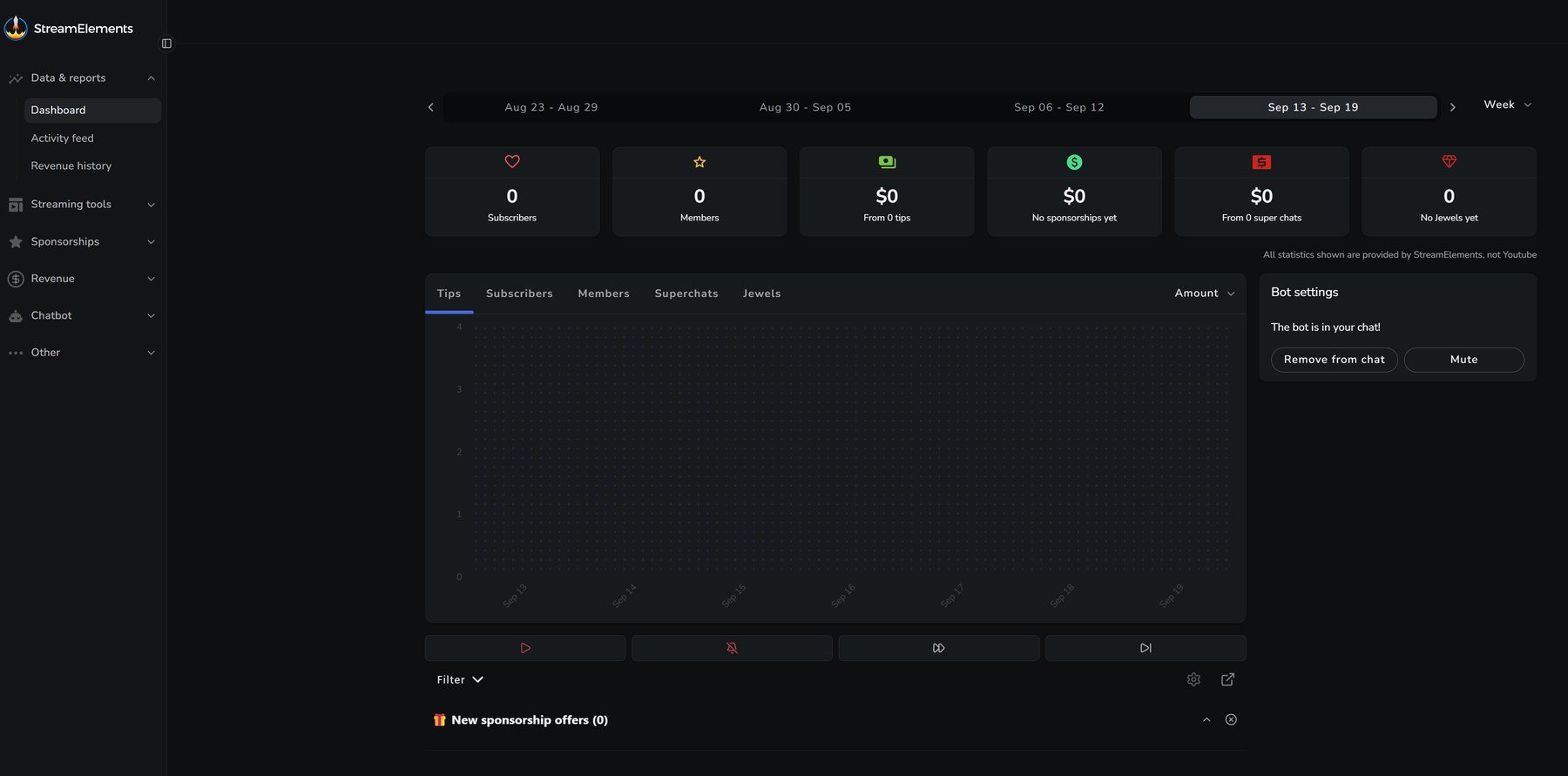
Section titled “The main dashboard”The home page shows subscribers, Super Chats, tips, and average viewership. Choose a time period from the top bar to change the stats and graph.
On the right, check whether the chatbot has joined your channel. Part removes it from chat; Mute stops it from posting. You can also edit your stream title and category here.
The top bar
Section titled “The top bar”Your profile picture appears at the top right of each dashboard page, with a red ring while you’re live. Click it to change your language or theme, import settings, or open SE.Live and Ground Control.
The Activity Feed
Section titled “The Activity Feed”The Activity Feed lists individual events as they happen. You can mute or skip alerts, check chatbot status, and reset session settings here.
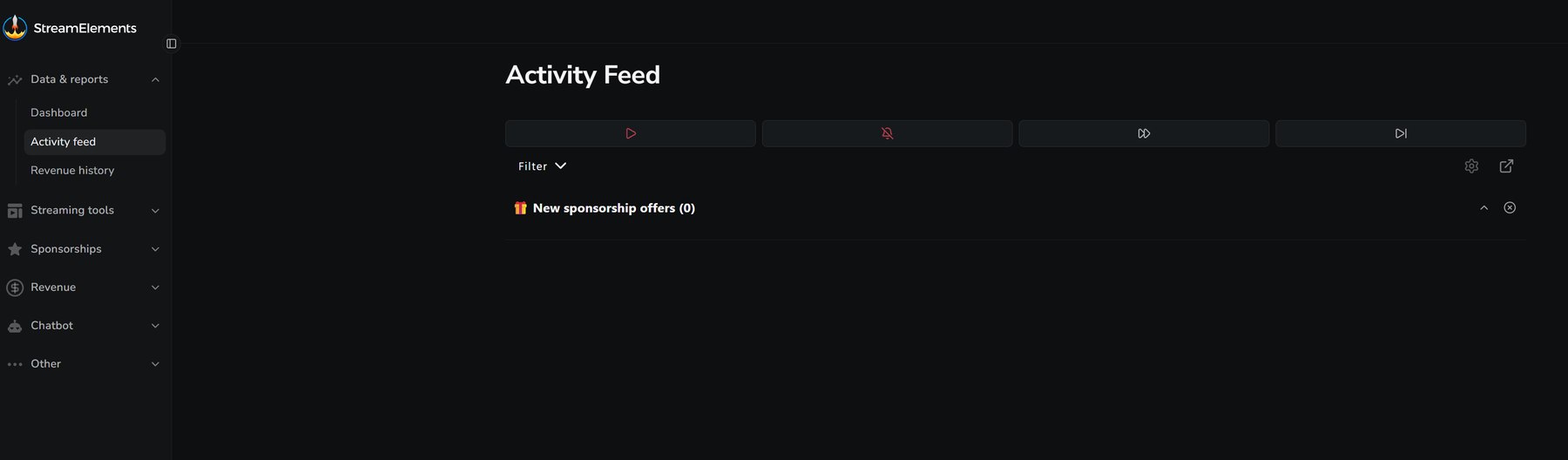
To filter the feed:
- Click Filter.
- Choose which event types you want to see.
- Click Filter to apply.
You can also open the Activity Feed in OBS through SE.Live.