

YouTube Quickstart: Build Your Overlay
YouTube
Part 3 of 5 · All steps
An overlay adds graphics and alerts to your stream. If yours is ready, continue to 4. Connect OBS and Go Live.
Create an overlay
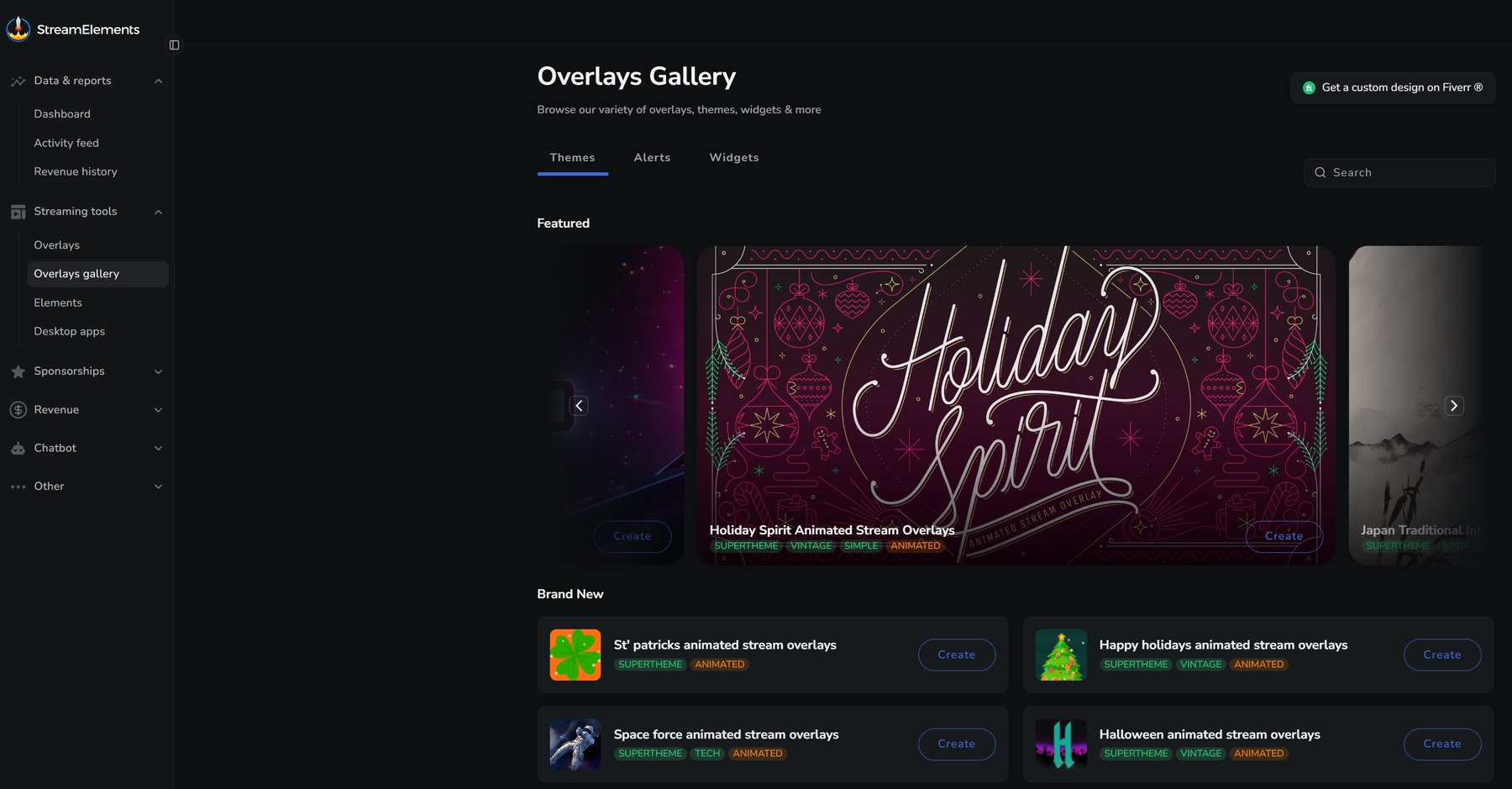
Section titled “Create an overlay”To use a theme:
- Go to the Themes Gallery and open the Theme tab.
- Choose the YouTube Theme. Use the static version to reduce CPU usage.
- Click Create and give it a name.
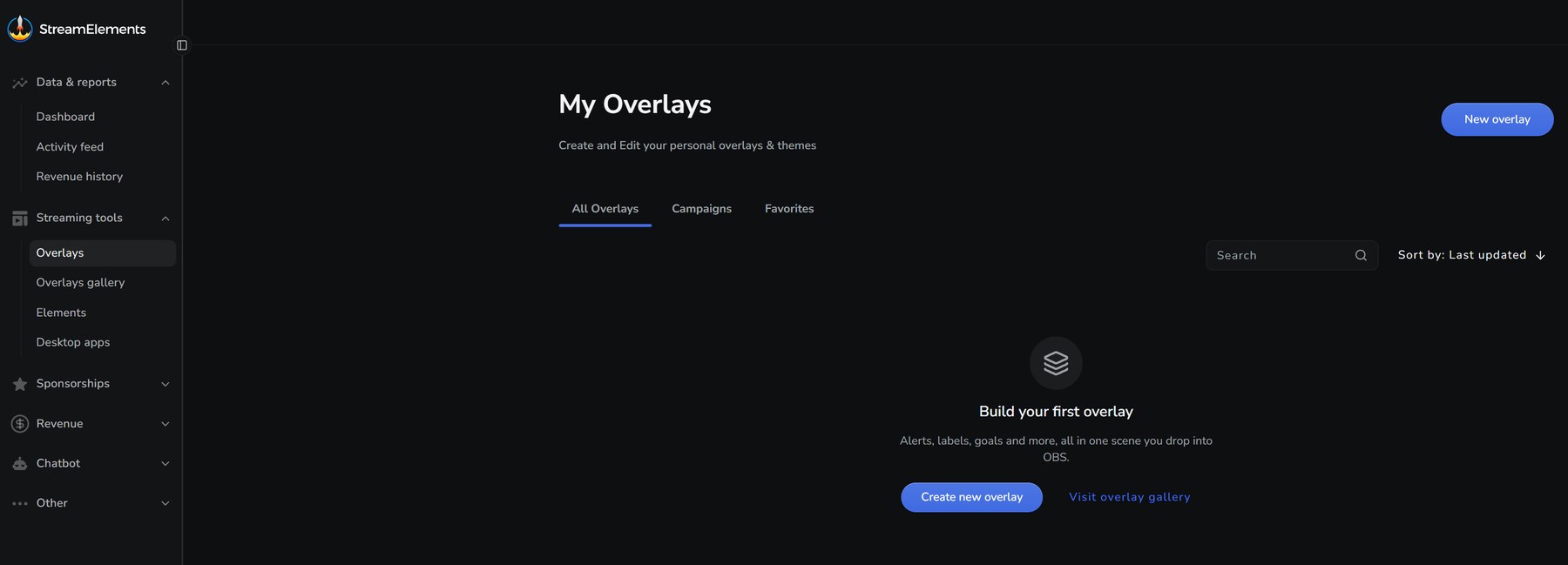
To start with a blank overlay, go to Overlays and click New overlay. Choose a resolution that matches your stream, such as 1920x1080, then click Start. If you saved an overlay during account setup, you can open that one instead.
Set up your AlertBox for Super Chats
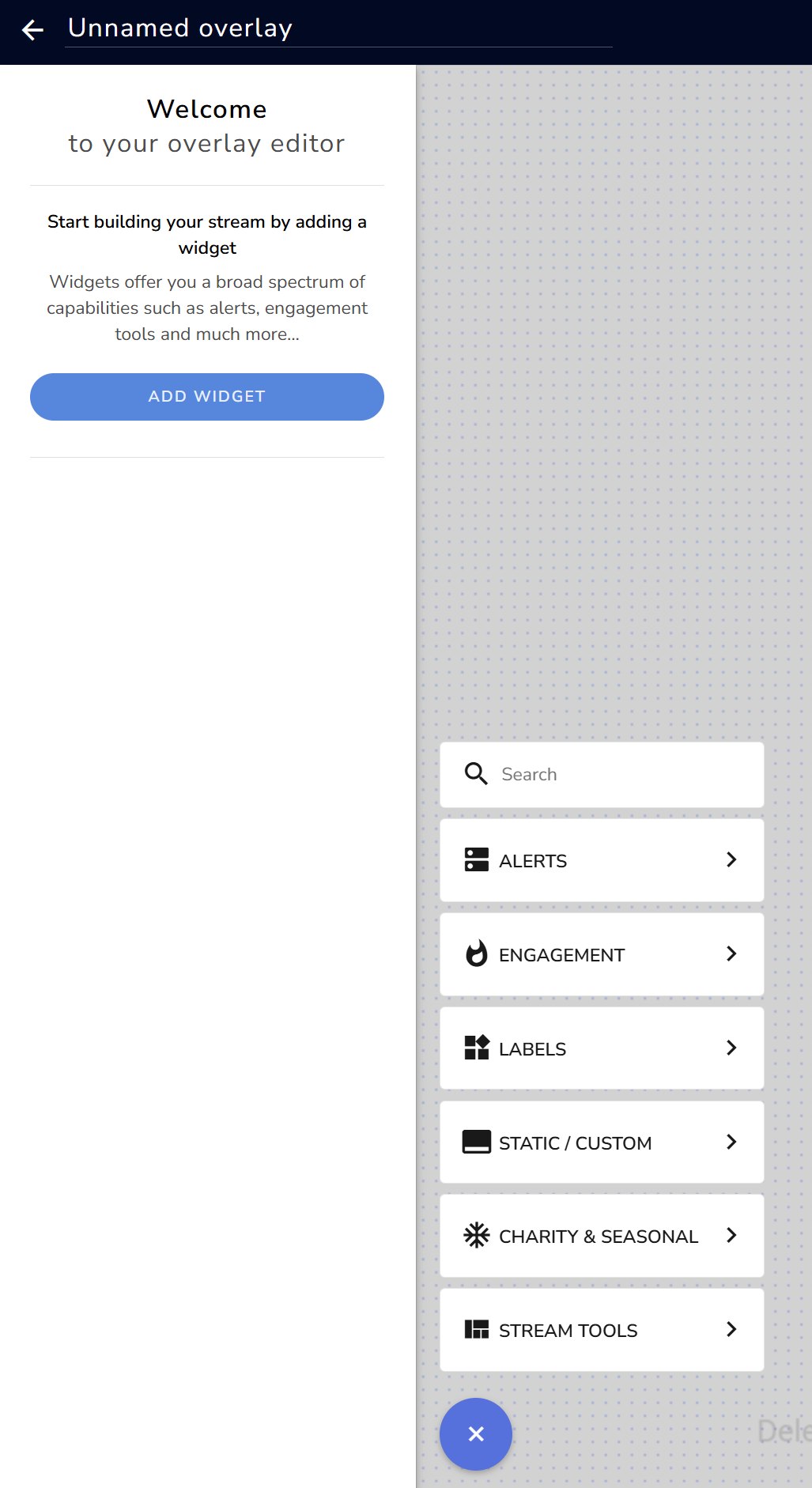
Section titled “Set up your AlertBox for Super Chats”The AlertBox displays alerts on your stream. Open your overlay and select its AlertBox. If it doesn’t have one yet, click + in the editor and choose Alerts → AlertBox.
Open the AlertBox settings and enable SuperChat.
Save the overlay. You’ll add its URL to OBS next.
4. Connect OBS and Go LiveInstall SE.Live, connect your YouTube account, and add this overlay to your scene.
Related
Section titled “Related”Getting Started with OverlaysAdd an AlertBox or Custom Widget in the Overlay Editor.